Adding a page to a model-driven app usually means picking a table, choosing a form or view, and configuring things control by control. Generative pages give you another route: you describe the page you want, and the agent writes the React code and shows you a live preview. In this post we’ll build one from scratch.
It all happens inside the regular model-driven app designer. “Generative page” simply shows up as one more option when you add a page.
The scenario
Contoso IT wants an Equipment Loan Tracker. Staff check out laptops, monitors and phones, and a manager keeps an eye on what’s out and what’s overdue. We’ll build a card gallery of equipment that highlights anything currently checked out.
Create the Equipment table
Generative pages read from real Dataverse tables. The AI builds the UI, not the data, so you need a table to point it at. If you don’t have one, create a custom Equipment table with these columns:
| Column | Type | Notes |
|---|---|---|
| Equipment Name | Text | Primary column |
| Category | Choice | Laptop / Monitor / Phone / Other |
| Serial Number | Text | |
| Status | Choice | Available / Checked Out / In Repair |
| Assigned To | Lookup → User | |
| Checkout Date | Date only | |
| Return Due Date | Date only |
A similar table works fine too. What matters is having a Choice column like Status, since we’ll use it for conditional styling. Add a few sample rows with a mix of statuses so the preview has something to show.
Generate the page
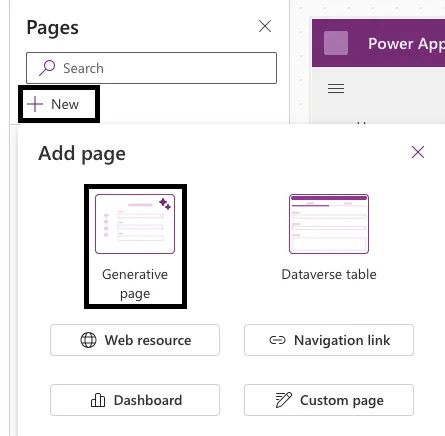
- Open your model-driven app in the designer, go to Pages, select + New, and choose Generative page.
-
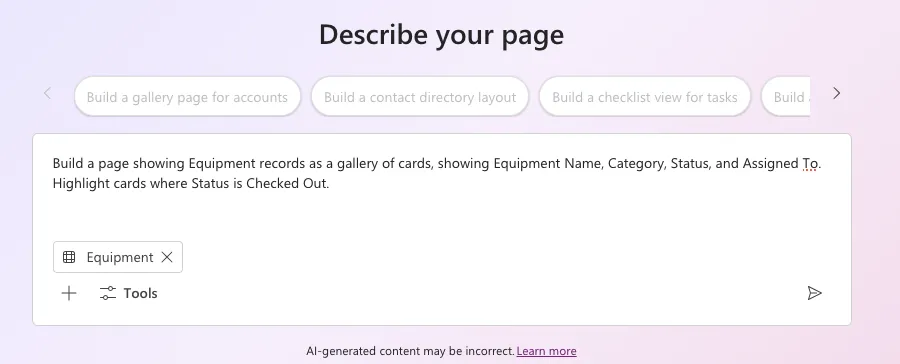
In the prompt box, describe what you want. Be specific about the fields and the behavior. For the tracker, use:
Build a page showing Equipment records as a gallery of cards, showing Equipment Name, Category, Status, and Assigned To. Highlight cards where Status is Checked Out.
-
Link your data. Select Add data → Add table and pick the Equipment table. The agent can only use fields from tables you’ve linked, so don’t skip this. You can link up to six Dataverse tables to one page.
If you’d rather guide the layout visually, Add data → Attach image lets you upload a sketch or wireframe.
- Select Generate page. After a moment you’ll see a preview: a gallery of cards showing the four fields, with the Checked Out items styled differently.
Refine it
You have two ways to adjust the result.
Ask for changes in chat. Type something like “make the checked-out cards red” or “sort by return due date” and the preview updates. This is the quickest way to get the look right.
Edit the code directly. Switch to the Code tab to see the generated React. If you want exact control over spacing, colors or logic, change it here. It’s also worth a quick look at how the Checked Out highlight was done, since it’s plain conditional logic on the Status value and easy to tweak.
Two extra tools help as you iterate:
- Compare shows a diff between versions once you’ve made a few rounds of changes, so you can see what changed.
- Accessibility assistant scans each generated version for accessibility problems and can fix them with Auto fix.
Save and publish
When you’re happy with it, select Save and Publish. Generative pages are solution-aware, so the page can be added to a solution and moved between environments like any other page, form or view.
Before it goes to production, read through the generated code, especially if the page touches sensitive data. It’s your code once it’s in your app, so it should go through the same review as anything else you ship.
Availability
A couple of things to check before you start:
- The in-product experience is currently limited to environments in the US, UK, Australia and Singapore. If your environment is elsewhere, you won’t see the Generative page option.
- Availability changes over time, so confirm current regions before planning a rollout around it.