A prompt column is a Dataverse column that stores the output of an AI prompt on a record. You write a natural-language prompt, point it at one or more columns as input, and Dataverse re-runs it whenever a referenced input column changes — the result gets saved like any other column value. Common uses: summarizing a case description, classifying feedback, scoring sentiment, drafting a reply from other fields on the record.
This post covers where a prompt’s input comes from, how it identifies which row to run against, and then walks through a working example.
Prerequisites
- Copilot and AI Prompts turned on in environment settings (Power Platform admin center → Environment → Settings → Features)
- AI Builder / Copilot Credits entitlement on the environment
- “Block unmanaged customizations” disabled, or the column won’t save
What “source” actually means
When you click +Add content on a prompt, it asks for a table, then a column. The table is just the source — wherever the input column lives. Usually that’s the same table your prompt column is on, since you’re pulling in a sibling column from the same record. Dataverse allows other tables too, but pulling from a different table adds relationship/lookup setup on top.
One rule regardless of source: formula columns, file columns, image columns, and other prompt columns can’t be used as input. Pick one and it’s silently ignored.
How a prompt column knows which row to use
Every prompt gets a required text input variable, added automatically. It filters on the primary column of the table — not the hidden GUID primary key. That filter can’t be turned off; Dataverse won’t save a prompt without it, and shows an error if the variable is missing or not applied as a filter on the primary column.
Note: The Microsoft documentation states the filter is applied to the “primary column of the data source.” In practice, the Filter attribute must be set to the table’s GUID column — the auto-generated unique identifier column — not the primary name column. In the
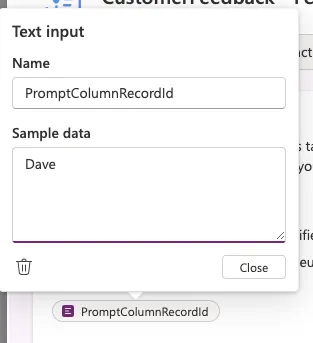
Customer Feedbacktable, the primary name column isCustomer Name, but the prompt only saves when the Filter attribute is set toCustomerFeedback(the GUID column). The variable name confirms this:PromptColumnRecordId— it resolves to a record ID. During testing, you can still enter a display name (e.g.Dave) as sample data and the platform resolves it to the correct record.
What changes is the filter value:
- By default it’s set to a dynamic placeholder chip,
PromptColumnRecordId. That’s what resolves automatically to whichever record actually triggered the prompt once it’s running for real — you never type a GUID or name in for production use. - The only time you replace that chip with an actual value (e.g.
Eve) is while testing at design time, so you can preview one record’s result. Swap the chip back in before saving — leaving a hardcoded value in place scopes the live prompt to that one record only.
Separately, there are filter conditions — optional, and they don’t identify a row. They just decide whether the prompt should run at all (e.g. only if Status = Active). We’ll set one up below.
A prompt runs when a record is created or a referenced input column changes. Nothing changes, no run, no credits used. Execution is asynchronous, so results won’t appear instantly.
Hands-on example: a Feedback table that classifies and summarizes
We’ll build a Customer Feedback table with a Feedback Text column, and a prompt column, Feedback Summary, that summarizes it and tags sentiment.
1. Create the table. A Customer Feedback table with a Feedback Text column (multiline text) and a couple of test records — set it up however you normally would. Give each test record a distinct, recognizable value in the primary column (Customer Name in this example); you’ll need it for testing.
2. Create the prompt column.
- New column → Display name
Feedback Summary→ Data type Prompt - Clear Allow form fill assistance
- +Add new prompt, and replace the prefilled text with something like: “Summarize the following customer feedback in one sentence, then classify the sentiment as Positive, Neutral, or Negative.”
- +Add content →
Customer Feedbacktable →Feedback Text→ Add- Dataverse automatically adds the required input variable, bound to the table’s GUID column (
CustomerFeedbackhere, not the primary name columnCustomer Name) — you’ll see it in the prompt even though you didn’t add it
- Dataverse automatically adds the required input variable, bound to the table’s GUID column (
If you clear the prefilled prompt text to write your own, keep the required text input variable in place rather than deleting everything and starting from a blank prompt.
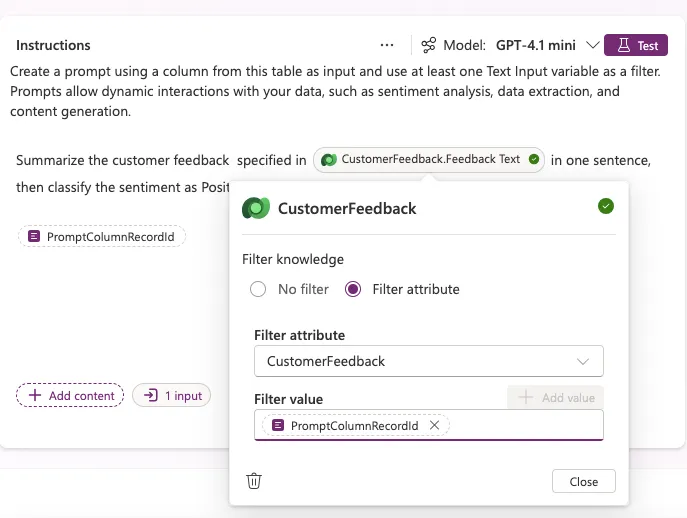
After adding Feedback Text as content, open its Filter knowledge popup and confirm the Filter attribute is set to the table’s GUID column (CustomerFeedback in this example, not Customer Name).
3. Test it.
- Select the input variable, then click the
PromptColumnRecordIdchip in Filter value and replace it with your test record’s exact value (e.g.Dave) - Close, then Test, and check the Model response and Knowledge used tab
- Tweak the prompt until it looks right
- Before saving, clear the test value back out so the field returns to the
PromptColumnRecordIdplaceholder — a hardcoded value would scope the live prompt to only that one record - Save
4. Try it on a real record. Add Feedback Text and Feedback Summary to the table’s form, save and publish, then edit Feedback Text on a record and save. Reopen it — Feedback Summary now has a result.
5. Check status. Every prompt column gets two companion columns: ..._PromptColumnStatus and ..._PromptColumnDetails. Add them to a view:
| Code | Meaning |
|---|---|
| 0 | Not started |
| 1 | In progress |
| 2 | Completed successfully |
| 2000 | Skipped — filter conditions not met |
| 2001 | Skipped — no input column actually changed |
| 3 | Failed — check Details |
2000 and 2001 aren’t errors — the platform correctly found nothing new to process.
6. Monitor credits. make.powerautomate.com → Automation center → AI Builder activity. Filter by date or download the CSV; Estimated consumption shows the cost per run.
7. Turn it off if needed. Clear Allow prompt column execution on the column. Both that setting and the environment-level AI Prompts setting need to be on for the prompt to run at all.
FAQ
Do I need a record’s GUID? No — the required filter binds to the primary column and resolves automatically in production.
Can I filter on something other than the primary column? Not for the required variable — that’s locked to the primary column. Optional filter conditions (e.g. only run when a field isn’t empty) can target other columns and are configured separately, from the input variable’s Apply filter option.
Can I backfill existing records? Not automatically — prompts only run on create or when an input column changes. Trigger a no-op update via Power Automate to force a backfill.