If you have ever set up unattended automation in Azure or the Power Platform, you have probably hit a wall of confusing terminology in the Microsoft Entra admin center.
The documentation tells you to create an App Registration so your script can authenticate. Then it tells you to assign roles to a Service Principal. But there is no “Service Principals” item in the portal menu, only a blade called Enterprise applications.
Worse, both blades show an Object ID, and picking the wrong one silently breaks your role assignments.
This post explains what the three terms mean, why Microsoft splits them apart, and exactly which values to copy.
Why you need these in the first place
A human administrator signs in with a username, a password and MFA. A nightly PowerShell script or a DevOps pipeline that runs at 2:00 AM has nobody to approve an MFA prompt.
Running it under a normal user account with MFA disabled is a serious security risk. It is also fragile: when that employee leaves and the account is disabled, your production pipelines stop working.
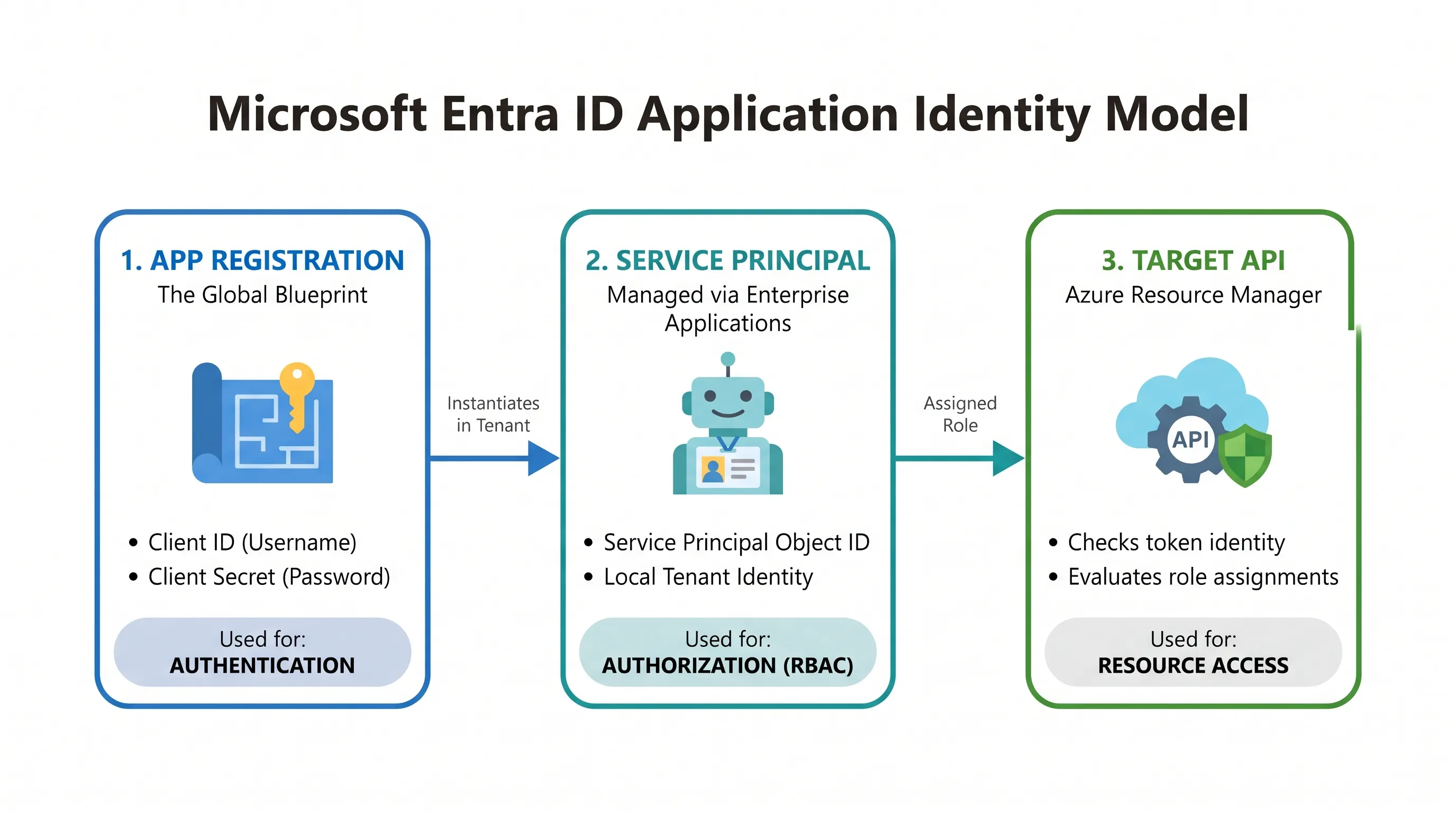
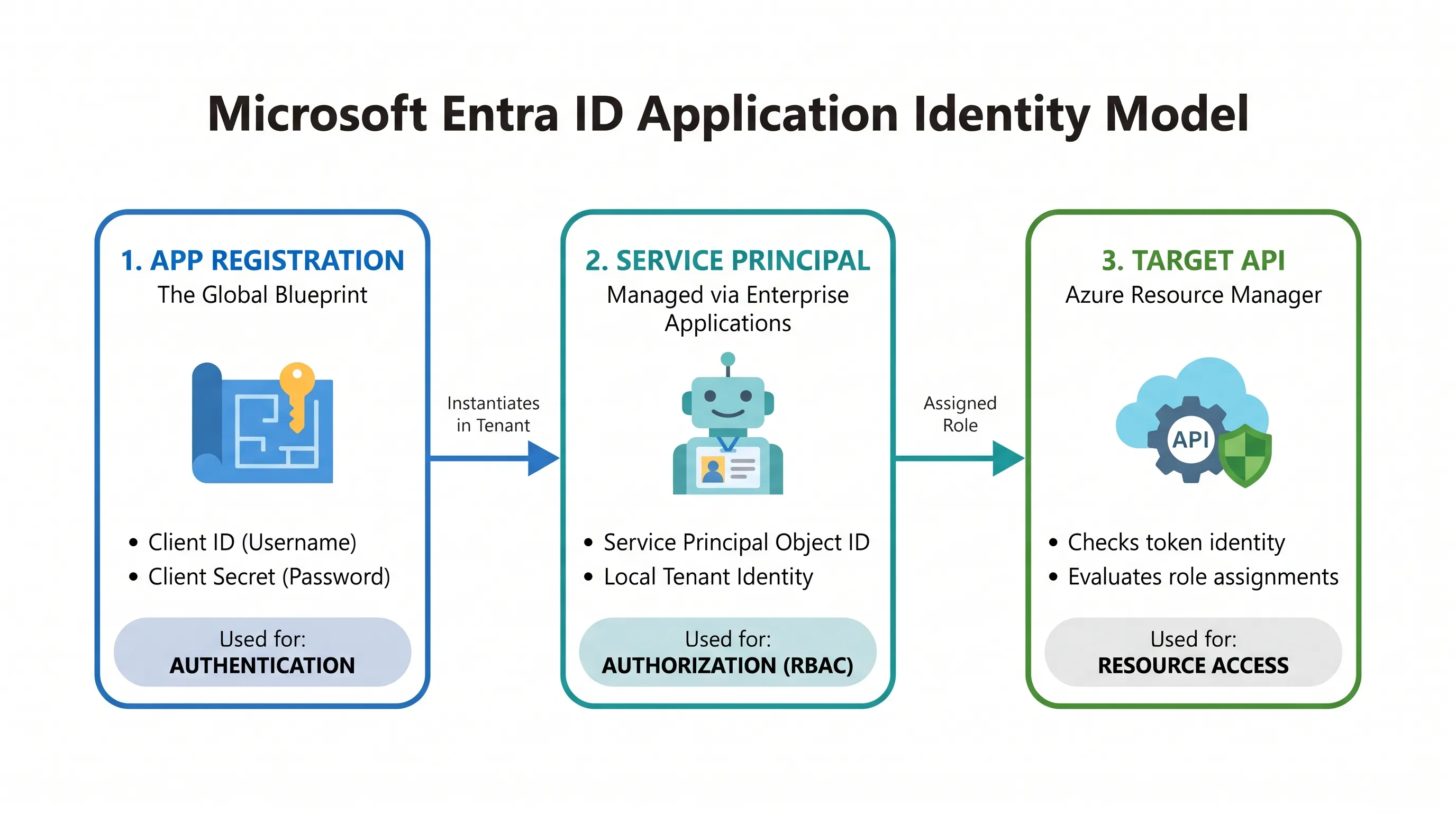
Instead, Entra ID gives your script its own non-human identity. That identity is split into two connected parts: a global blueprint (the application object) and a local security identity (the service principal).
The three core terms
1. App Registration (the global blueprint)
When you register an application you create an application object through the App registrations blade. Think of it as the master definition of your software or script.
- What it does: defines how the app proves who it is (authentication).
- Where it lives: once, in the home tenant where you created it.
- What you configure here: client secrets, certificates, redirect URLs and the API permissions the app requests.
2. Service Principal (the local worker identity)
A blueprint cannot sign in or hold permissions by itself. To work with resources in a tenant, Entra ID uses the blueprint to create a service principal in that tenant’s directory.
- What it does: acts as the “robot user” in your tenant that receives roles and permissions (authorization).
- How it gets created: when you register an app in the Entra admin center, a matching service principal is created automatically. If you register the app through the CLI, PowerShell or Microsoft Graph, you may need to create the service principal yourself (for example with
az ad sp create). - Why it is separate: a vendor that builds a multi-tenant product creates one App Registration in its own tenant. When 500 customers install it, each gets its own local service principal. The vendor controls the code and secrets on the blueprint, while each customer’s IT team controls what the local service principal can touch. Single-tenant internal scripts follow the same architecture.
3. Enterprise Application (the admin portal view)
If the service principal is what receives permissions, why is there no “Service Principals” menu? Because Microsoft named that blade Enterprise applications.
- What it is: when you open an app under Enterprise applications, you are looking at the service principal in your tenant.
- What you manage here: user and group assignment, Conditional Access, tenant-level consent, and the service principal Object ID you need for role assignments.
| Concept | Role in the architecture | Portal location | Primary purpose |
|---|---|---|---|
| App Registration | Global blueprint (application object) | Entra ID > App registrations | Authentication (client ID and credentials) |
| Service Principal | Local tenant identity (“robot user”) | Entra ID > Enterprise applications | Authorization (receives roles and access) |
| Enterprise Application | Portal view of a service principal | Entra ID > Enterprise applications | Governance (manage the local instance, find the SP Object ID) |
Walkthrough: setting up “Nightly-Bot”
Suppose a script called Nightly-Bot needs to call an administrative API, such as Azure Resource Manager, using role-based access control (RBAC).
Step 1: Create the registration
- Sign in to the Microsoft Entra admin center.
- Go to Entra ID > App registrations and select New registration.
- Name it
Nightly-Bot, leave it as Single tenant, and select Register. Entra ID creates the application object and the matching service principal. - Open Certificates & secrets > New client secret and create a secret for your script. Copy the Value immediately, because it is shown only once.
Step 2: Grab the right IDs (and avoid the Object ID trap)
Both blades show the same Application (client) ID for Nightly-Bot, but each shows a different Object ID.
From App registrations (used by your script to sign in):
- Directory (tenant) ID: identifies your Entra tenant.
- Application (client) ID: acts as the username.
- Client secret Value: acts as the password. Copy the Value, not the Secret ID.
- The trap: do not use the Object ID on the App Registration overview page for role assignments. It identifies only the blueprint.
From Enterprise applications (used by admins to grant access):
- Open Enterprise applications and select
Nightly-Bot. You can also follow the Managed application in local directory link on the App Registration overview page. - Copy the Object ID shown there. This is the service principal Object ID. When a PowerShell command or REST API asks for a
principalIdorObjectIdfor an Azure RBAC role assignment, use this one.
You can also look it up from the command line:
# Azure PowerShell
(Get-AzADServicePrincipal -DisplayName "Nightly-Bot").Id

# Azure CLI
az ad sp show --id <application-client-id> --query id -o tsv
And use it in a role assignment:
New-AzRoleAssignment `
  -ObjectId <service-principal-object-id> `
  -RoleDefinitionName "Contributor" `
  -Scope "/subscriptions/<subscription-id>/resourceGroups/<resource-group>"
Power Platform note: Dataverse application users work differently. In the Power Platform admin center you add an application user by its Application (client) ID and then assign Dataverse security roles. Always check which identifier the specific service asks for.
How it all connects at runtime
Once your credentials are in the script and the role is assigned to the service principal, the handshake looks like this:
- The script authenticates.
Nightly-Botsends its tenant ID, client ID and client secret to Entra ID. - Entra ID issues a token. It validates the credentials against the App Registration, finds the local service principal, and issues an OAuth access token that identifies the service principal (the
oidclaim holds its Object ID). - The target API checks access. The script presents the token. The API checks the identity against its role assignments and, if the service principal has been granted access, runs the request.
Security tips
- Prefer certificates or federated credentials over client secrets where you can.
- Set secret expiry deliberately and put a renewal reminder in your calendar, since an expired secret is the classic cause of a 2:00 AM pipeline failure.
- If the workload runs on Azure, consider a managed identity instead, which removes the secret entirely.
- Grant the least privilege needed, at the narrowest scope.
Quick recap
- App Registration: the blueprint. It holds the client ID and credentials, and is used for authentication.
- Service Principal: the identity in your tenant. It receives roles, and is used for authorization.
- Enterprise Application: the portal blade where you manage the service principal.
- For Azure RBAC assignments, use the service principal Object ID from Enterprise applications, not the Object ID on the App Registration.